
Hostinger WordPress Tutorial 2026: Step-by-Step Guide
Complete Hostinger WordPress Tutorial 2026 for Beginners
This Hostinger WordPress Tutorial 2026 is created for beginners who want to build a professional website without technical confusion. Whether you are a student, freelancer, startup founder, shop owner, or service provider in India, this guide explains every step clearly and practically.
In 2026, having a website is no longer optional. Customers search online before trusting any business. A simple, fast, and mobile-friendly website builds credibility and helps generate leads. Hostinger combined with WordPress is one of the easiest and most affordable ways to achieve this.
This tutorial focuses on real usage, not theory. You will learn how to buy hosting, connect a free domain, install WordPress, select a theme, design pages using Elementor, and prepare your website for future growth. No coding knowledge is required at any stage.
By the end of this guide, you will have full control over your website and confidence to manage it independently.
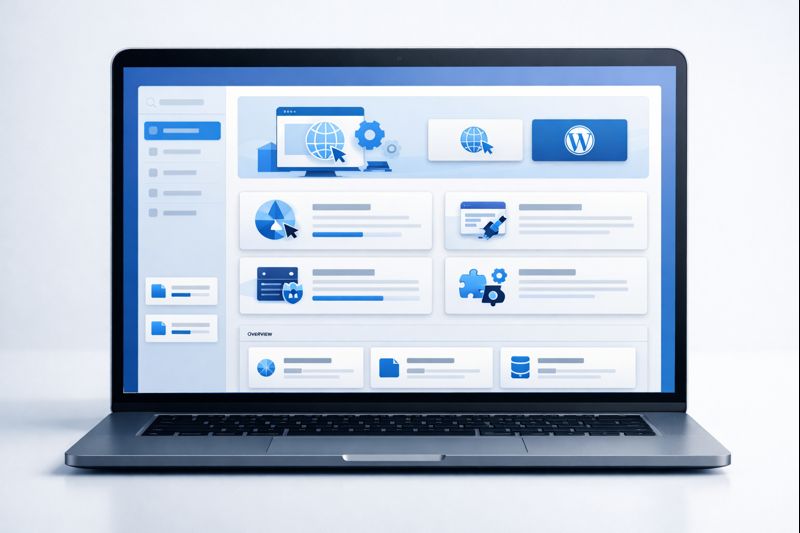 Hostinger dashboard and WordPress setup
Why Choose Hostinger for WordPress Websites
Hostinger is one of the most beginner-friendly hosting providers available today. It is widely used by Indian users because of its affordable pricing, fast servers, and simple control panel called hPanel.
Unlike traditional hosting dashboards, Hostinger’s interface is clean and guided. Even first-time users can easily navigate hosting settings, domain management, and WordPress tools without confusion.
- Low-cost hosting plans suitable for startups
- Free domain included with yearly plans
- Built-in WordPress optimization
- Fast loading servers for Indian visitors
- 24/7 live chat support
For small businesses, Hostinger offers a strong balance between price, performance, and ease of use. It allows you to focus on content and business growth rather than technical maintenance.
Hostinger Setup and Free Domain Configuration
The first step in this Hostinger WordPress Tutorial 2026 is creating your hosting account. Hostinger guides you through a simple onboarding process that takes only a few minutes.
During signup, you will choose a WordPress hosting plan. For beginners, a basic plan is sufficient. You can always upgrade later as your traffic grows.
- Create a Hostinger account using email
- Select a WordPress hosting plan
- Claim your free domain name
- Access the hPanel dashboard
Hostinger automatically configures server settings for WordPress, which saves time and prevents technical errors. This makes it perfect for non-technical users.
 Domain setup and hosting configuration
Hostinger WordPress Tutorial 2026: Installing WordPress
After hosting setup, WordPress installation is the next step. Hostinger offers a one-click WordPress installer that handles everything automatically.
You only need to provide a few basic details like admin username, password, and site language. Within minutes, your WordPress website will be live.
- Select WordPress as platform
- Create admin login details
- Choose website language
- Complete installation instantly
Once installed, you can access the WordPress dashboard where all website management tasks are performed.
Basic WordPress Settings You Must Configure
Before designing pages, it is important to adjust some basic WordPress settings. These settings improve usability, SEO, and overall website structure.
- Set website title and tagline
- Configure permalink structure
- Delete default sample posts and pages
- Adjust reading and discussion settings
These small steps create a clean foundation and prevent future issues. Most beginners skip this step, which later causes confusion.
Choosing the Right Theme for Your Website
A WordPress theme controls how your website looks. Choosing the right theme is important for performance, mobile responsiveness, and design flexibility.
For beginners, lightweight themes that work well with Elementor are recommended. These themes load fast and are easy to customize.
- Choose a lightweight and responsive theme
- Ensure Elementor compatibility
- Avoid heavy multipurpose themes
You can change themes anytime without losing content, so do not worry about making a perfect choice initially.
Building Pages Using Elementor Page Builder
Elementor is a drag-and-drop page builder that allows you to design pages visually. You can see changes live while editing.
Using Elementor, you can create professional layouts without writing a single line of code. This is especially useful for business owners.
- Drag and drop elements
- Edit text and images visually
- Use ready-made sections
- Preview changes in real time
 Designing pages using Elementor
Understanding Containers and Layout Structure
Elementor uses containers to structure layouts. Containers help control spacing, alignment, and responsiveness.
Understanding containers allows you to create clean and professional-looking pages that work well on all devices.
- Containers manage layout structure
- Elements sit inside containers
- Proper spacing improves readability
Customizing Text, Buttons, and Images
Customization helps your website reflect your brand identity. Elementor allows full control over fonts, colors, buttons, and images.
- Choose readable fonts
- Maintain consistent colors
- Add clear call-to-action buttons
- Optimize images for speed
Consistency in design improves trust and professionalism, especially for service-based businesses.
Mobile Optimization and Responsive Design
Most Indian users browse websites on mobile devices. Elementor provides mobile editing tools to optimize layouts for smaller screens.
- Adjust font sizes for mobile
- Hide unnecessary elements
- Test responsiveness regularly
Mobile optimization improves user experience and SEO performance.
Creating Pages, Menus, Header, and Footer
A professional website needs proper navigation. Creating essential pages and organizing them through menus helps users find information easily.
- Create Home, About, Services, Contact pages
- Design header and footer
- Set up navigation menus
Clear navigation improves trust and reduces bounce rate.
Website Performance and Speed Optimization
Website speed affects both user experience and search rankings. Hostinger provides optimized servers, but basic optimization is still important.
- Install a cache plugin
- Optimize images
- Avoid unnecessary plugins
Fast websites keep visitors engaged and improve conversion rates.
Final Thoughts
This Hostinger WordPress Tutorial 2026 demonstrates that building a professional website is achievable for anyone. By following each step carefully, beginners can launch a fast, secure, and scalable WordPress website without technical stress.
To continue growing, explore topics like SEO basics, content marketing, and website analytics. A website is not just about design—it is a long-term business asset.